

Store Settings
The Store settings page is where you configure your connected WooCommerce store’s details and connection.
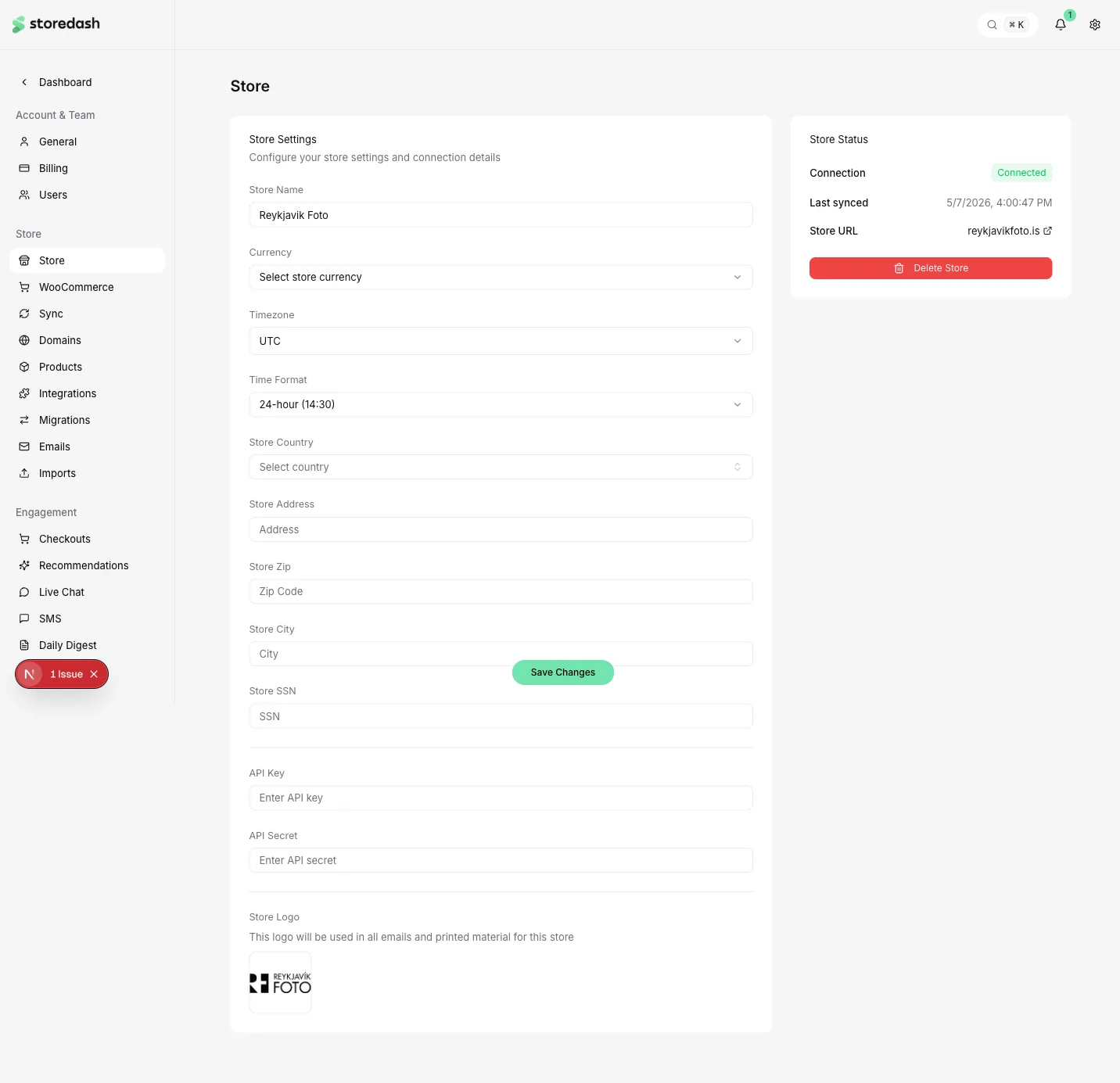
Store Settings
Section titled “Store Settings”- Store Name — The display name for your store within Storedash.
- Currency — The currency used for pricing and analytics. Select from the dropdown to match your WooCommerce store currency.
- Timezone — Your store’s timezone, used for scheduling and analytics date calculations.
- Time Format — Choose between 12-hour or 24-hour time display.
- Store Country — The country where your store operates.
- Store Address / Zip / City — Your store’s physical address, used for shipping calculations and invoices.
- Store SSN — Business identification number (where applicable).
API Connection
Section titled “API Connection”- API Key — Your WooCommerce REST API consumer key. Required for Storedash to communicate with your store.
- API Secret — Your WooCommerce REST API consumer secret. Keep this confidential.
To generate API credentials, go to your WooCommerce admin panel under WooCommerce > Settings > Advanced > REST API and create a new key with Read/Write permissions.
Store Logo
Section titled “Store Logo”Upload a logo for your store. This logo is used in transactional emails and printed material (such as packing slips and invoices). Click Change image to upload a new logo, or Remove image to clear it.
Store Status
Section titled “Store Status”The status panel on the right side shows:
- Connection — Whether your store is currently connected to Storedash.
- Last synced — The timestamp of the most recent data sync.
- Store URL — A link to your live WooCommerce store.
- Delete Store — Permanently removes this store from Storedash. This action cannot be undone.